![Untitled design (24)-1.png]](https://help.zenventory.com/hs-fs/hubfs/Logos/Untitled%20design%20(24)-1.png?width=60&height=60&name=Untitled%20design%20(24)-1.png)
This is Part 1 of a 3-part process for connecting Shopify to Zenventory. In this part, you'll install the Zenventory app from the Shopify App Store and configure the integration settings on the Zenventory side. Complete all three parts before you start fulfilling live orders through the integration.
Before you start
- There are 3 parts to this installation process. Each step is important.
- Part 1: Installing the Shopify Integration in Zenventory.
- Part 2: Product location setup in Shopify.
- Part 3: Setup of Shopify Flow app for order fulfillment.
- Logged into app.zenventory.com in one tab. Do not login into a custom Subdomain.
- Logged into your Shopify in another tab.
- Zenventory User logged in has importer and Manage Integrations roles.
- All products have SKUs (including variants).
- Products set as physical and inventory tracking enabled.
- Free Shopify Flow app installed in Shopify Account.
- After installing the Zenventory App for Shopify, a Zenventory location will be created automatically. Do not create a Zenventory location manually.
Installing the Shopify Integration in Zenventory
- Open Zenventory: Log in at app.zenventory.com and keep that browser tab open. Do not use a custom subdomain.
- Open Shopify: In a new browser tab, log into your Shopify account.
- Go to Apps: Shopify → Settings > Apps and Sales Channels → Shopify App Store.
- Find Zenventory: Search Zenventory, open the app page, click Install.
- Complete install: Click the second Install when redirected.
- Finish in Zenventory: On the “Installation Finished” page click Marketplace Integrations.
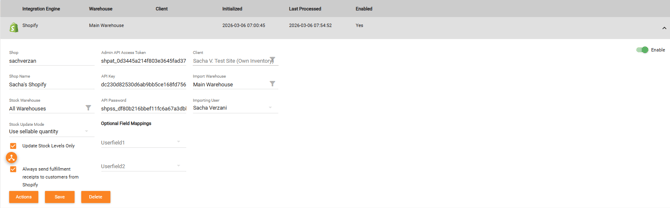
- Configure integration: You'll be redirected to the integrations screen. Select the new Shopify integration (bottom of the list). Enter your specific details:
-
- The Shop field will be auto-filled by the integration. DO NOT CHANGE THIS VALUE. If this is missing, something went wrong with your integration.
- Add a Shop Name — your label for this store. It shows up in receiving records, activity logs, and mapping screens, so if you're connecting more than one Shopify store, give each one a distinct name or you won't be able to tell their logs and receipts apart.
- Select Client (3PL only).
- Stock Update Mode — whether to send Shopify your Sellable quantity or not send inventory numbers at all.
- Avoid Use In-Stock Quantity — it sends the raw physical count with no deduction for stock that's already allocated to other orders, reserved as safety stock, on order, or quarantined, so Shopify can show items as available that aren't actually free to sell, leading to overselling.
- Stock Warehouse — which warehouse(s) inventory is pulled from when calculating the inventory count number sent to Shopify. You can pick specific warehouses or leave it at "All Warehouses." If more than one is selected, their quantities are summed into a single number — Shopify only ever sees one stock count per SKU, not a per-warehouse breakdown.
- Import Warehouse — the warehouse new orders are assigned to for fulfillment. Shopify doesn't tell Zenventory which warehouse to ship from, so this fills that gap for every order pulled from this store.
- Importing User — the user account new orders are processed under. This user must have:
- The Importer role ← link article
- The Manage Integrations role ← link article
- and a Secure Key ← link article , or every order import from this store will fail. It also supplies the fallback warehouse above and is recorded as the "received by" user on the initial stock import. Don't leave this blank.
8. Click Save.
9. Initialize: Click Initialize to complete the connection.
10. Once you've saved your settings and clicked Initialize, your integration is connected. Continue to Connect Shopify to Zenventory (Part 2 of 3): Set Up Inventory to make your products available for fulfillment.
Troubleshooting
Client information being removed when clicking Initialize?
You are likely not clicking Save before clicking Initialize.
Asked to login with credentials from Shopify?
You are likely not logged into app.zenventory.com in the same browser as Shopify