![Untitled design (24)-1.png]](https://help.zenventory.com/hs-fs/hubfs/Logos/Untitled%20design%20(24)-1.png?width=60&height=60&name=Untitled%20design%20(24)-1.png)
Pack and ship a Pick to Tote order by scanning the tote, which opens the order it holds at the Pack Verify or Ship screen.
Before you start
- The order was picked with Pick to Tote and the picks were submitted in the mobile app.
- Any totes on the cart that didn't get an order have been unloaded. Otherwise they stay stuck in Packing. How to pick to tote in the mobile app
- Know your company's Auto Pack setting. It decides whether you pack first or go straight to shipping, and when the tote is released. You can find it under Admin → System → Basic Settings.
When the tote is released
Once a tote is released, it becomes Available and no longer belongs to the order. When every tote on a cart is released, the cart becomes Available too.
Steps
If you pack orders manually (Manual Packing Only)
- Open the Pack screen.
- Scan the tote's barcode.
- Follow the steps in https://help.zenventory.com/how-to-use-pack-verify
Note: The tote is released when packing is done, so scanning the tote at the Ship screen won't find the order. Use the order number instead.
If Auto Pack is on
- Open the Ship screen.
- Scan the tote's barcode.
- The order in that tote opens. Ship it as usual.
Cart dropped off at the station? With Auto Pack on, its totes are released only when their orders ship, so the cart sits in Packing until then. Pickers who need the cart back can unload the totes at the station instead of dropping the cart off.
How to verify it worked
- The correct order opens after the tote scan.
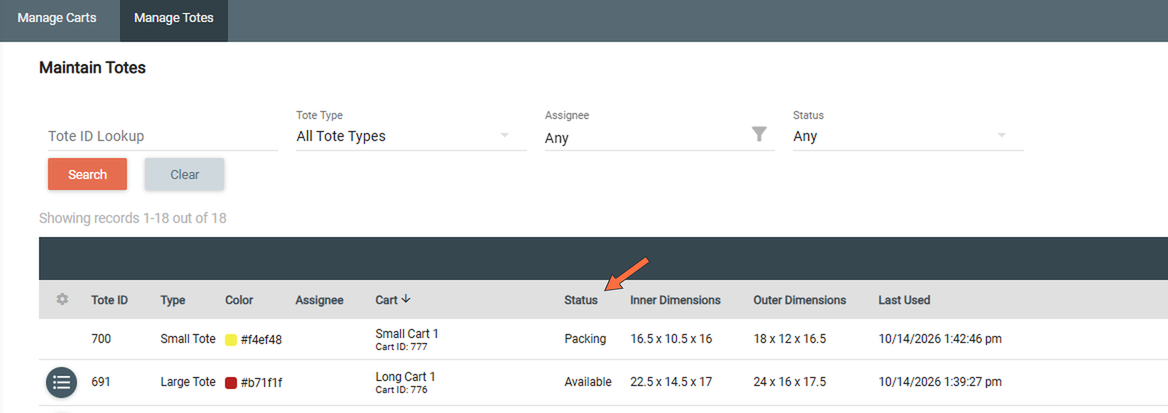
- After the release step in the table above, the tote shows Available on the Manage Totes tab, and the cart shows Available on the Manage Carts tab once all its totes are released.
Common issues
Problem: "Invalid Order Number" on the Ship screen after scanning a tote.
Fix: The tote has no order, either because it didn't get one during picking or because it was already released. Scan the order number instead.
Problem: Nothing opens on the Pack screen after scanning a tote.
Fix: The tote has no order. Check the tote's Status on the Manage Totes tab. Cart and tote statuses and fields
Problem: The tote scan doesn't work on the batch ship screen.
Fix: Tote scanning works on the single-order Pack and Ship screens only.