![Untitled design (24)-1.png]](https://help.zenventory.com/hs-fs/hubfs/Logos/Untitled%20design%20(24)-1.png?width=60&height=60&name=Untitled%20design%20(24)-1.png)
Pick to Tote - Web Reference Sheet
Reference details for carts and totes: every status, the page columns, the barcode label specifications, and the Lexicon fields.
What this covers
This article lists the reference details for carts and totes in Pick to Tote. It covers what each cart and tote status means, the columns on the Manage Carts and Manage Totes screens, the barcode format printed on cart and tote labels, and the Lexicon fields for carts and totes, including their limits and which ones are required.
Use it to look up what a status means, what a column shows, or how a field behaves. It’s written for warehouse managers who set up carts and totes, and for anyone checking cart and tote activity on the web.
What’s on the Carts & Totes pages?
Carts
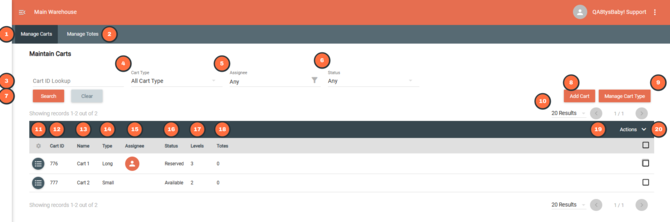
| # | Name | What it does |
|---|---|---|
| 1 | Manage Carts | The page you're on. It lists every cart in your Active Warehouse with its type, who claimed it, its status, and how many totes are on it. From here you add, edit, and delete carts, set up cart types, and print cart labels. |
| 2 | Manage Totes | Switches to the Manage Totes page, where you add and delete totes, set up tote types, and print tote labels. |
| 3 | Cart ID Lookup | Finds a cart by its Cart ID. Type the number (776) or scan the cart's barcode (CART+000776). It doesn't search by cart name. |
| 4 | Cart Type | Shows only carts of the selected cart type. |
| 5 | Assignee | Shows only carts claimed by the selected user. The list includes users in this warehouse with the Picker role. |
| 6 | Status | Shows only carts with the selected status: Available, Reserved, Picking, or Packing. |
| 7 | Search and Clear | Search applies the filters. Clear resets them. |
| 8 | Add Cart | Opens the New Cart window, where you enter a name and choose a cart type. |
| 9 | Manage Cart Type | Opens the list of cart types, where you add, edit, or delete them. It also shows how many carts of each type are in each status. |
| 10 | Results | Number of carts shown per page. |
| 11 | Row menu | Edit Cart opens the cart's details. Delete Cart only appears when the cart is Available. |
| 12 | Cart ID | The cart's ID number. The cart's barcode is CART+ followed by this number, padded to 6 digits. |
| 13 | Name | The cart's name. |
| 14 | Type | The cart's cart type. |
| 15 | Assignee | The picker who claimed the cart, shown as an avatar. Blank when no one has claimed it. |
| 16 | Status | Where the cart is in the Pick to Tote process: Available, Reserved, Picking, or Packing. |
| 17 | Levels | Number of levels (shelves) on the cart. |
| 18 | Totes | Number of totes currently on the cart. |
| 19 | Actions | Applies to the selected carts. Delete Carts skips any cart that isn't Available, without a message. Print Barcode opens the label print window. |
| 20 | Select | Selects carts for the Actions menu. The checkbox in the header selects every cart on the page. |
Search Filters: Cart ID Lookup (the cart number, with or without the CART+ prefix, not the name), Cart Type, Assignee, Status.
Totes
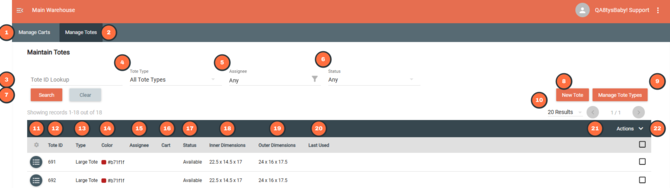
| # | Name | What it does |
|---|---|---|
| 1 | Manage Carts | Switches to the Manage Carts page, where you add, edit, and delete carts, set up cart types, and print cart labels. |
| 2 | Manage Totes | The page you're on. It lists every tote in your Active Warehouse with its type, color, size, the cart it's on, and its status. From here you add and delete totes, set up tote types, and print tote labels. |
| 3 | Tote ID Lookup | Finds a tote by its Tote ID. Type the number (699) or scan the tote's barcode (TOTE+000699). |
| 4 | Tote Type | Shows only totes of the selected tote type. |
| 5 | Assignee | Shows only totes in use by the selected user. The list includes users in this warehouse with the Picker role. |
| 6 | Status | Shows only totes with the selected status: Available, Reserved, Picking, Picked, or Packing. |
| 7 | Search and Clear | Search applies the filters. Clear resets them. |
| 8 | New Tote | Opens the Add Tote window. Choose a tote type and a quantity to add several totes at once. |
| 9 | Manage Tote Types | Opens the list of tote types, where you add, edit, or delete them. It also shows how many totes of each type are in each status. |
| 10 | Results | Number of totes shown per page. |
| 11 | Row menu | Delete Tote only appears when the tote is Available. |
| 12 | Tote ID | The tote's ID number. The tote's barcode is TOTE+ followed by this number, padded to 6 digits. |
| 13 | Type | The tote's tote type. |
| 14 | Color | The tote type's color. |
| 15 | Assignee | The picker using the tote. Blank when the tote isn't on a claimed cart. |
| 16 | Cart | The cart the tote is on. Blank when the tote isn't on a cart. |
| 17 | Status | Where the tote is in the Pick to Tote process: Available, Reserved, Picking, Picked, or Packing. |
| 18 | Inner Dimensions | Length x Width x Height inside the tote, from its tote type. |
| 19 | Outer Dimensions | Length x Width x Height outside the tote, from its tote type. |
| 20 | Last Used | Date and time the tote was last loaded onto a cart. |
| 21 | Actions | Applies to the selected totes. Delete Totes skips any tote that isn't Available, without a message. Print Barcode opens the label print window. |
| 22 | Select | Selects totes for the Actions menu. The checkbox in the header selects every tote on the page. |
Search Filters: Tote ID Lookup, Tote Type, Assignee, Status.
Statuses
Cart
| Status | What it means |
|---|---|
| Available | Free for any picker to claim |
| Reserved | Claimed by a picker who is loading totes |
| Picking | Totes are loaded, orders are assigned, and picking is underway |
| Packing | Dropped off at the packing station, waiting for its orders to be packed or shipped |
Tote
| Status | What it means |
|---|---|
| Available | Free to be loaded onto a cart |
| Reserved | Scanned onto a claimed cart, waiting for an order |
| Picking | On a cart that is out picking. Usually holds an assigned order. Totes that didn't get an order also show Picking. |
| Picked | Its order has been picked |
| Packing | At the packing station, waiting for its order to be packed or shipped |
Manage Types Screen
Carts
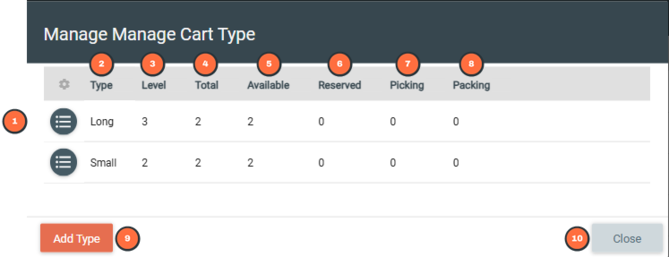
| # | Name | What it does |
|---|---|---|
| 1 | Row menu | Edit opens the cart type's details. Levels can't be changed while any cart of this type is in use. Delete removes the cart type and every cart of that type, and only works when all of those carts are Available. |
| 2 | Type | The cart type's name. |
| 3 | Level | Number of levels (shelves) on this cart type. |
| 4 | Total | Number of carts of this type in your Active Warehouse. |
| 5 | Available | Carts of this type that are free for any picker to claim. |
| 6 | Reserved | Carts of this type claimed by a picker who is loading totes. |
| 7 | Picking | Carts of this type that are out picking. |
| 8 | Packing | Carts of this type dropped off at the packing station. |
| 9 | Add Type | Opens the New Cart Type window. |
| 10 | Close | Closes the window. |
Totes
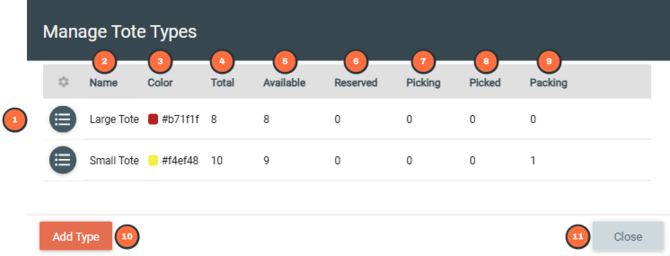
| # | Name | What it does |
|---|---|---|
| 1 | Row menu | Edit opens the tote type's details. Delete removes the tote type and every tote of that type, and only works when all of those totes are Available. |
| 2 | Name | The tote type's name. |
| 3 | Color | The tote type's color. |
| 4 | Total | Number of totes of this type in your Active Warehouse. |
| 5 | Available | Totes of this type that are free to be loaded onto a cart. |
| 6 | Reserved | Totes of this type scanned onto a claimed cart, waiting for an order. |
| 7 | Picking | Totes of this type on a cart that is out picking. |
| 8 | Picked | Totes of this type whose order has been picked. |
| 9 | Packing | Totes of this type at the packing station. |
| 10 | Add Type | Opens the New Tote Type window. |
| 11 | Close | Closes the window. |
Fields
Carts
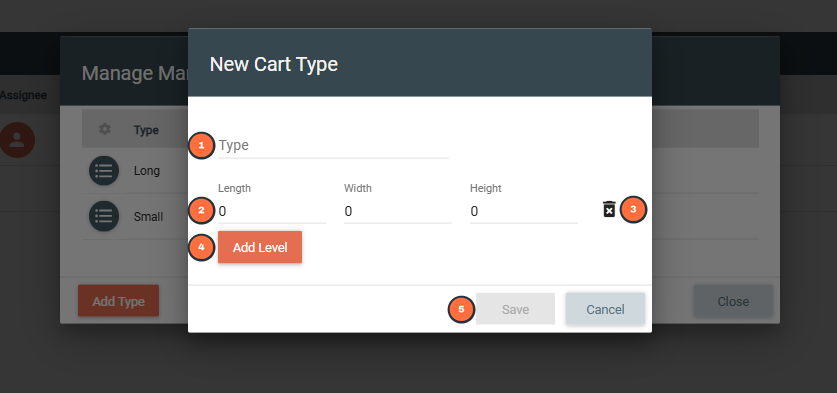
| # | Name | What it does |
|---|---|---|
| 1 | Type | Name of the cart type, up to 30 characters. Each cart type name must be unique. |
| 2 | Length, Width, Height | The size of the open space on one level (shelf), in inches. All three must be greater than 0. Height is the space up to the shelf above. The first row is Level 1, the top shelf. |
| 3 | Delete level | Removes this level. A cart type always keeps at least one level. Levels can't be changed while any cart of this type is in use. |
| 4 | Add Level | Adds the next level down. It copies the length and width from the level above, so you usually only need to enter the height. |
| 5 | Save | Stays greyed out until Type and every level's Length, Width, and Height are filled in, with each dimension above 0. |
Totes
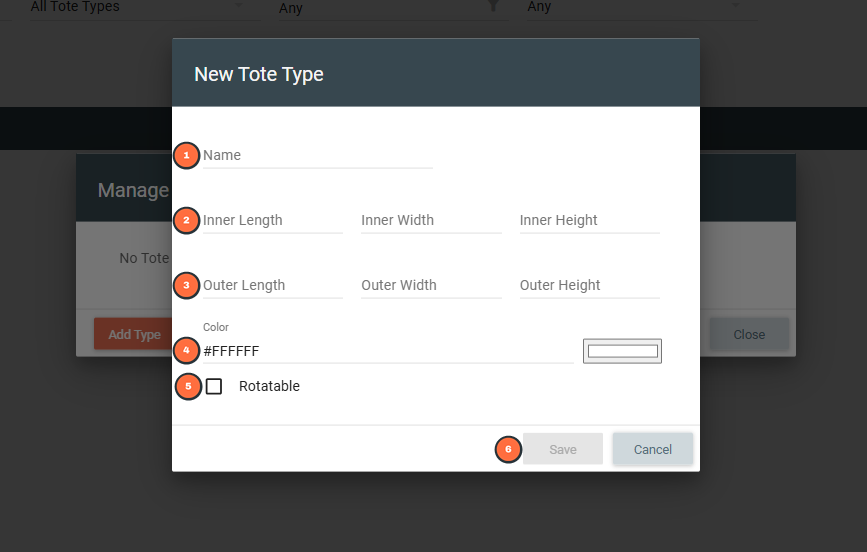
| # | Name | What it does |
|---|---|---|
| 1 | Name | Name of the tote type, up to 30 characters. Each tote type name must be unique. |
| 2 | Inner Length, Inner Width, Inner Height | The size of the space inside the tote, in inches. All three must be greater than 0. Zenventory compares these to each item's storage dimensions, which are in inches, to decide which orders fit in totes of this type. |
| 3 | Outer Length, Outer Width, Outer Height | The size of the outside of the tote, in inches. All three must be greater than 0. Zenventory doesn't check whether totes fit on a cart level, so use these to plan your layout. |
| 4 | Color | Color shown next to this tote type in the grids, so pickers can tell types apart. Enter a hex code or use the swatch. Defaults to white (#FFFFFF). |
| 5 | Rotatable | Saved with the tote type, but has no effect at this time. |
| 6 | Save | Stays greyed out until Name and all six dimensions are filled in, with each dimension above 0. |
Cart and Tote Labels
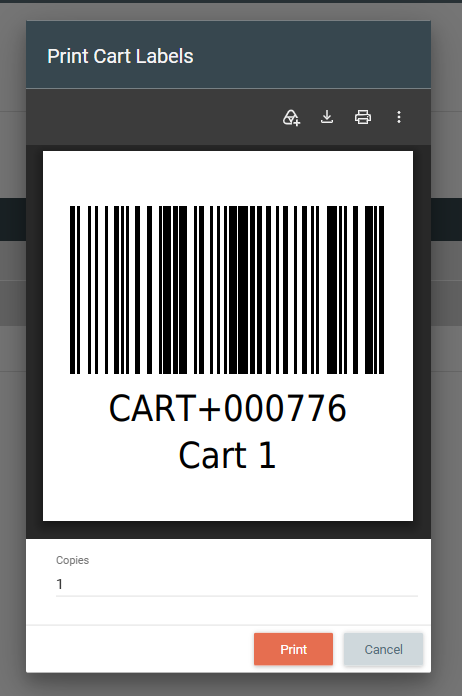 |
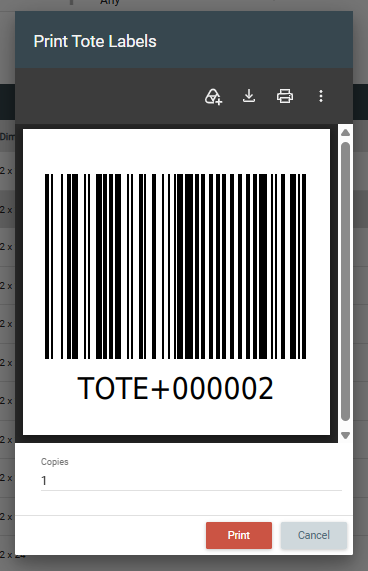 |
| Equipment | Barcode format | Example |
|---|---|---|
| Cart | CART+ followed by the Cart ID, padded to 6 digits | Cart ID 776 → CART+000776 |
| Tote | TOTE+ followed by the Tote ID, padded to 6 digits | Tote ID 699 → TOTE+000699 |
| Spec | Cart label | Tote label |
|---|---|---|
| Label size | 2 x 2 inches | 2 x 2 inches |
| Barcode type | Code 128 | Code 128 |
| Barcode size | 1.7 x 0.9 inches | 1.7 x 1.2 inches |
| Printed text | Barcode ID (for example, CART+000776) and the cart's name, centered below the barcode in 14 pt Arial. Long names wrap onto a second line. | Barcode ID (for example, TOTE+000699), centered below the barcode in 14 pt Arial |
| Output | PDF, which you can print or download | PDF, which you can print or download |
| Copies | Set per print. Each selected cart prints that many labels. | Set per print. Each selected tote prints that many labels. |
The cart’s name prints below the ID. Long names may not fit on the label.
Lexicon
Carts
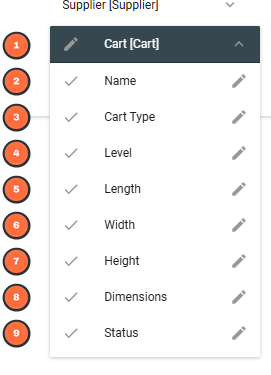
| # | Field | What It Does | Type | Limit | Reports | Notes | Required |
|---|---|---|---|---|---|---|---|
| 1 | Cart [Cart] | The word used for "Cart" across the web screens, including the Admin → Carts & Totes menu, column names, and messages. | Concept | N/A | None | The mobile app always says "Cart". Messages sent from the server to the app use your name. | N/A |
| 2 | Name | Name of the cart, shown in the cart grid, the mobile app, and on cart labels | Text | 30 chars | None | mustuse. Must be unique. The field stops at 30 characters. | Yes |
| 3 | Cart Type | The cart type (model) this cart uses. Also used for the Manage Cart Type button, the cart type's name field, the Cart Type Search Filter, and the grid column. | Dropdown / Text | 30 chars (type name) | None | mustuse. Cart type names must be unique. Can only be changed on a cart while the cart is Available. | Yes |
| 4 | Level | One shelf on the cart type. Also used for the Levels column, the Add Level button, and Level Count. | Label | N/A | None | mustuse. The first level entered is Level 1, the top shelf. | Yes, at least one |
| 5 | Length | Length of the open space on a level, in inches | Decimal | N/A | None | mustuse. Save stays disabled until every level has a length, width, and height. | Yes |
| 6 | Width | Width of the open space on a level, in inches | Decimal | N/A | None | mustuse. Save stays disabled until every level has a length, width, and height. | Yes |
| 7 | Height | Height of the open space on a level, up to the shelf above, in inches | Decimal | N/A | None | mustuse. Save stays disabled until every level has a length, width, and height. | Yes |
| 8 | Dimensions | Not used on any screen at this time | Label | N/A | None | mustuse. Renaming it has no visible effect. | N/A |
| 9 | Status | Where the cart is in the Pick to Tote process. See Cart statuses. | Status | N/A | None | mustuse. Set by the system. | Auto-populated |
Totes
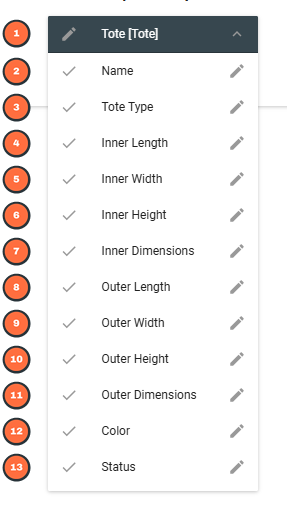
| # | Field | What It Does | Type | Limit | Reports | Notes | Required |
|---|---|---|---|---|---|---|---|
| 1 | Tote [Tote] | The word used for "Tote" across the web screens, including the Admin → Carts & Totes menu, column names, and messages. | Concept | N/A | None | The mobile app always says "Tote". Messages sent from the server to the app use your name. | N/A |
| 2 | Name | Name of the tote type | Text | 30 chars | None | mustuse. Must be unique. The field stops at 30 characters. | Yes |
| 3 | Tote Type | The tote type each tote belongs to. Also used for the Manage Tote Types button, New/Edit Tote Type windows, the Tote Type Search Filter, and the grid column. | Dropdown | N/A | None | mustuse. Totes copy their dimensions and color from the type. | Yes |
| 4 | Inner Length | Length of the space inside the tote, in inches | Decimal | N/A | None | mustuse. Must be greater than 0. | Yes |
| 5 | Inner Width | Width of the space inside the tote, in inches | Decimal | N/A | None | mustuse. Must be greater than 0. | Yes |
| 6 | Inner Height | Height of the space inside the tote, in inches | Decimal | N/A | None | mustuse. Must be greater than 0. | Yes |
| 7 | Inner Dimensions | Label for the inner L x W x H, shown in the tote grid and Add Tote window. Also used in the "must be greater than 0" error for all six dimensions. | Label | N/A | None | mustuse | Auto-populated |
| 8 | Outer Length | Length of the outside of the tote, in inches | Decimal | N/A | None | mustuse. Must be greater than 0. | Yes |
| 9 | Outer Width | Width of the outside of the tote, in inches | Decimal | N/A | None | mustuse. Must be greater than 0. | Yes |
| 10 | Outer Height | Height of the outside of the tote, in inches | Decimal | N/A | None | mustuse. Must be greater than 0. | Yes |
| 11 | Outer Dimensions | Label for the outer L x W x H, shown in the tote grid and Add Tote window | Label | N/A | None | mustuse | Auto-populated |
| 12 | Color | Color shown next to the tote type in grids, to help pickers tell types apart | Text (hex color) | 7 chars | None | mustuse. Defaults to #FFFFFF (white) if left blank. | No |
| 13 | Status | Where the tote is in the Pick to Tote process. See Tote statuses. | Status | N/A | None | mustuse. Set by the system. | Auto-populated |