![Untitled design (24)-1.png]](https://help.zenventory.com/hs-fs/hubfs/Logos/Untitled%20design%20(24)-1.png?width=60&height=60&name=Untitled%20design%20(24)-1.png)
How to Open the Edit Transfer Order Screen
From the Active Transfer Requests screen, touch and swipe right on the request you want to edit. The Edit option will appear — tap it to open the Edit Transfer Order screen.
.png?width=381&height=232&name=Dashboard%20%20(18).png)
The Edit Transfer Order screen includes:
.png?width=266&height=573&name=Dashboard%20%20(26).png)
- 3-dot menu — Tap to quickly change your active warehouse.
- Item/SKU Search Bar — Use this to add additional items to the order.
- Transfer Order Tiles — The items currently on the request. Slide a tile to the right and tap Delete to remove an item. If you accidentally delete an item, leave the Edit screen without saving to reverse the action.
- Required By Date & Time — Tap either field to adjust.
- Notes Field — Tap to add or edit notes.
- Save Button — Tap to save all changes and return to the Active Transfer Requests screen.
How to Adjust Item Quantities on a Transfer Request
Tap on any item tile to open the Adjust Quantity screen for that item.
- Tap + or – to adjust, or tap the number and type a quantity directly.
- Check Available at origin to make sure you're not requesting more than is in stock.
- Tap Save to confirm or Cancel to discard.
To remove an item from the request entirely, enter 0 as the quantity and tap Save.
How to Change the Required-By Date and Time
In the Edit Transfer Order screen, tap the Required By date or time field to open the date/time picker.
Changing the Time
.png?width=264&height=354&name=Dashboard%20%20(23).png)
- Select AM or PM.
- Tap the hour portion of the time, then select your hour on the clock face.
- Tap the minute portion of the time, then select your minute on the clock face.
- To enter the time by keyboard instead, tap Switch to Keyboard View.
- Tap OK to save or Cancel to discard.
Changing the Date
.png?width=264&height=448&name=Dashboard%20%20(22).png)
- The current date is shown at the top.
- To change the year, tap the year and select from the list.
- To change the month, tap the back and forward arrows on either side of the month/year.
- Tap the day you want within the calendar.
- Tap OK to save or Cancel to discard.
After updating the date and time, tap the orange Save Changes button to apply all edits to the order.
How to Cancel (Delete) a Transfer Request
Note: Deleting a transfer request is permanent and cannot be undone. If you began the process by mistake, tap Cancel on the confirmation prompt before confirming to keep the request active.
A transfer request can not be cancelled if any of the items in the request have already been shipped by the origin warehouse.
- From the Active Transfer Requests screen, swipe left to reveal the Delete option.
.png?width=395&height=240&name=Dashboard%20%20(19).png)
- Tap Delete.
- A confirmation prompt will appear: "Are you sure you want to delete Transfer Number [X]?" Tap Delete to confirm.
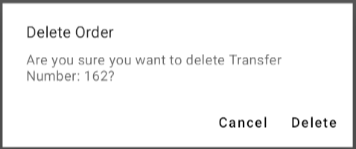
The request will be permanently removed.
Related Articles