![Untitled design (24)-1.png]](https://help.zenventory.com/hs-fs/hubfs/Logos/Untitled%20design%20(24)-1.png?width=60&height=60&name=Untitled%20design%20(24)-1.png)
Once an order has been picked & packed, the last step is to complete the order by entering shipping information. For many users, this is handled automatically through a supported 3rd party shipping platform (ex: ShipWorks or ShipStation), which updates order status when a label is printed and electronically communicates the tracking data to Zenventory. For users who do not utilize a Zenventory-integrated shipping application or the built in Shipping function in Zenventory, the order will need to manually be marked as shipped for it to be considered complete. For information on creating a shipment using the built-in Zenventory shipping function, click here.
Marking an order as shipped
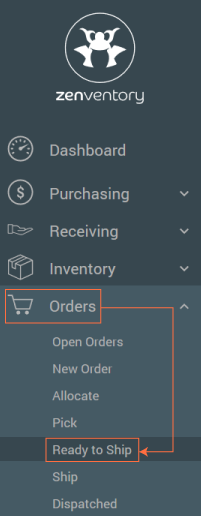
- Navigate to the “Orders” tab. Select "Ready To Ship" to view all orders that are picked and ready to ship.
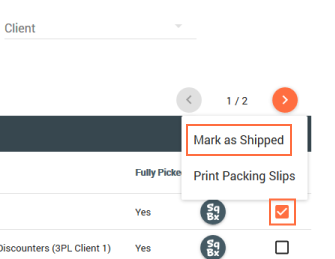
- Click the "Checkmark box" to the right of any order, then click the "Actions" dropdown menu and select "Mark as Shipped".
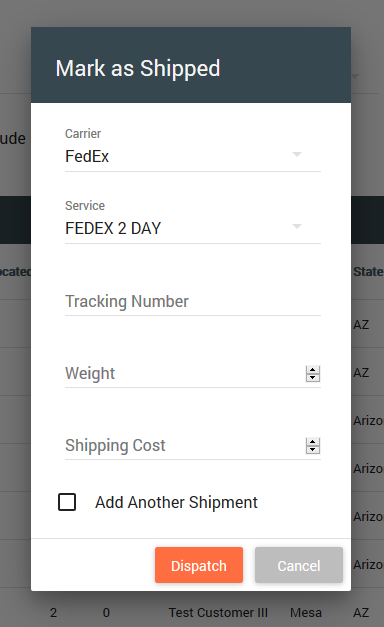
- (Optional) Enter any relevant details needed for the shipment: Carrier, Service, Tracking Number, Weight, Shipping Cost.
NOTE: Skip to Step #5 if the order has multiple or combined shipments and requires additional shipment details. - Click the "Dispatch" button to mark the order as Dispatched.
- (Adding Multiple Shipment Details)
- Check the “Add Another Shipment” box.
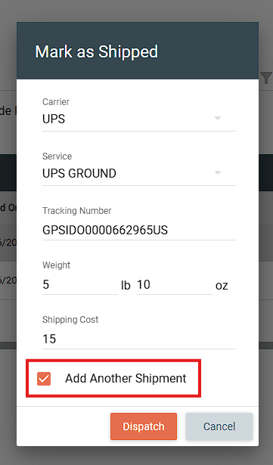
- Click the “Dispatch” button - The pop-up will reset and previously entered details get saved locally.
- Enter any additional shipment details. Click “Dispatch” to continue adding shipments.
- Deselect “Add Another Shipment” on the final shipment entry.
- Click “Dispatch” to mark the order as Dispatched with multiple shipments added.
- Check the “Add Another Shipment” box.