![Untitled design (24)-1.png]](https://help.zenventory.com/hs-fs/hubfs/Logos/Untitled%20design%20(24)-1.png?width=60&height=60&name=Untitled%20design%20(24)-1.png)
How to Manually Pack an Order with Pack Verify
Step 1:
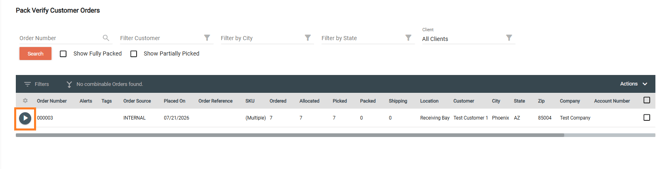
Go to Orders → Pack Verify. You can narrow the grid by selecting Show Fully Packed or Show Partially Picked.
Step 2:
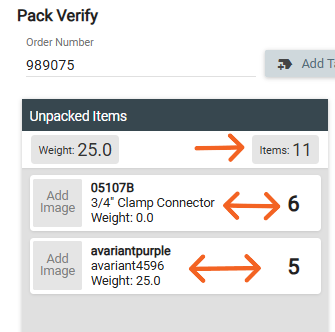
Select the order you want to pack. Then click the play button to the left of the order number. The Unpacked Items box shows all items, each item quantity, and the total quantity.
Step 3:
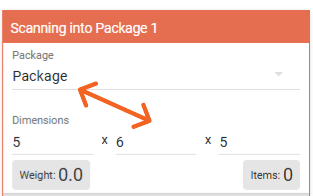
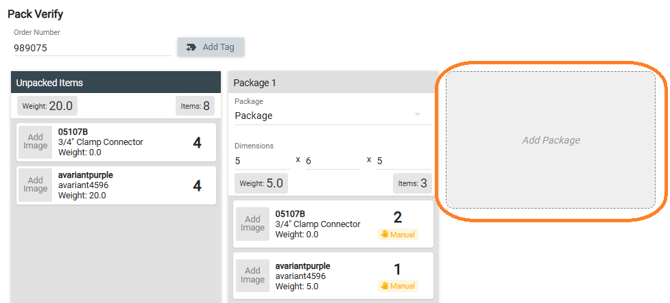
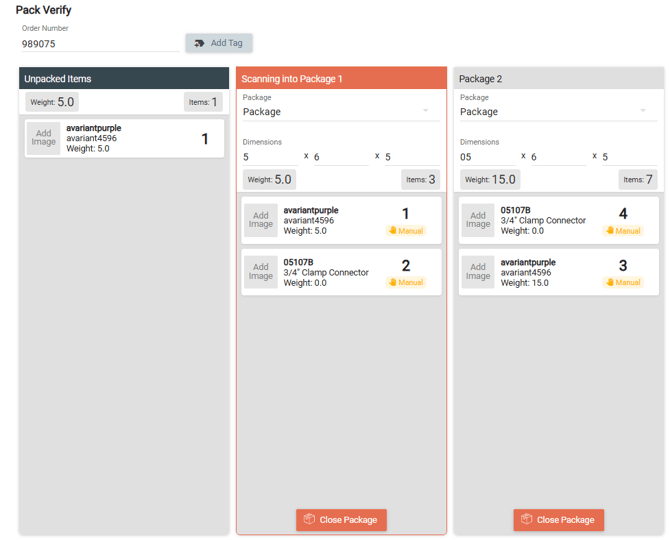
Depending on your site settings, you may need to choose a package type and enter package dimensions. To add another package, select Add Package.
Step 4:
To pack items, first select the package you want to add items to. Then click the item you want to pack. Each click adds 1 quantity of that item. You can split item quantities across different packages.
Step 5:
After all items are packed, a green message appears at the bottom of the Unpacked Items box. You then have a few options for closing the packages.
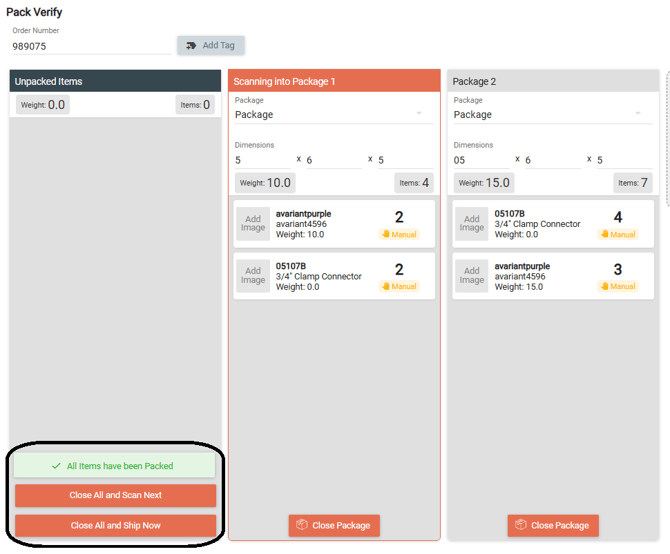
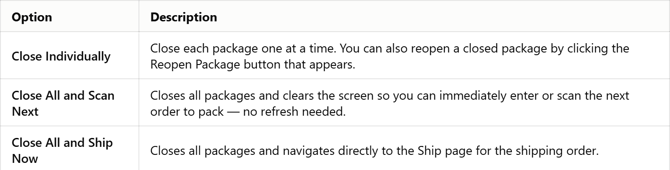
You can:
Notes:
-
If not all items on the order are picked, a warning message will also display in the order contents component indicating that not all items on the customer order are picked.

Shipping with Pack Verify
Step 1:
You can open this page from:
- The Ready to Ship page.
- The Pack Verify page after all allocated items are packed.
- The Ship page by entering the order number in the top-left field.
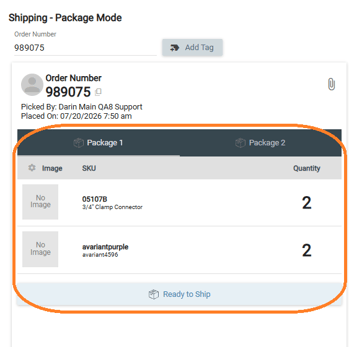
If the order has multiple packages, each package has its own tab. Each tab shows the packing status and the items in that package.
Step 2:
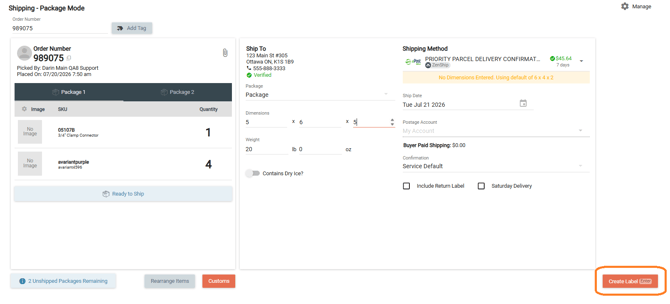
Select the tab for the first package you want to label. Enter any required shipping information. Information already entered when the order was created will fill in the matching fields automatically.
Note: You must enter shipment weight, carrier service, and packaging before checking rates.
Step 3:
Create the package label by selecting Create Label.
Step 4:
Repeat this process until all packages and package labels are complete.
How to ship a partial order with Pack Verify.
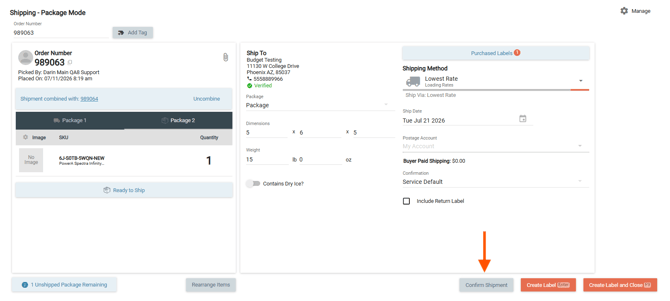
If the order has multiple packages on the same shipping order and you only want to ship some of them, create the labels you plan to use. Then select Confirm Shipments. This closes the current shipping order so it is available to integrations. Any unshipped packages and unpacked items move to a new shipping order.
.
Shipping Support Tips
.png?width=376&height=462&name=Kit%20Item%20(8).png)
- An Unpacked tab appears if any allocated items haven't been packed yet.
- You can also rearrange the the items in the packages by selecting the "Rearrange Items"
- If the package is fully packed but not closed, click Close Package
How to Void or Reprint an Individual Shipment Label
You can reprint or void individual labels from the Ship page, one at a time. You can only do this before the shipping order is confirmed. After the shipping order is confirmed, voiding applies to the entire shipping order from the Dispatched screen and the Shipment Details screen.
- Open the order in the Ship page and select the package tab for the label you want to void or reprint.
- Confirm the shipping order has not yet been closed, then select Purchased Labels on the right.
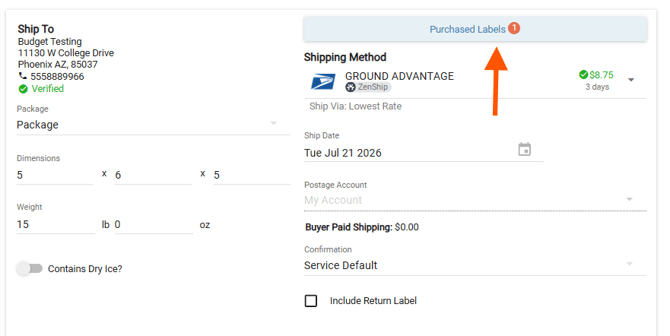
- You will see a drop down with the labels purchased. Select the 3 Dot menu icon.
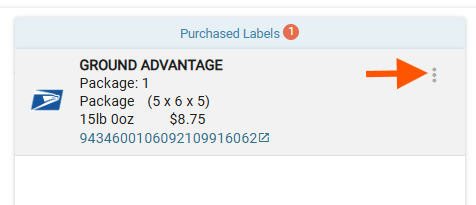
- Void or reprint the label for that individual package.
Pack-Verify System Settings
Found in Admin > System, these settings determine how — and if — items get packed automatically after picking.
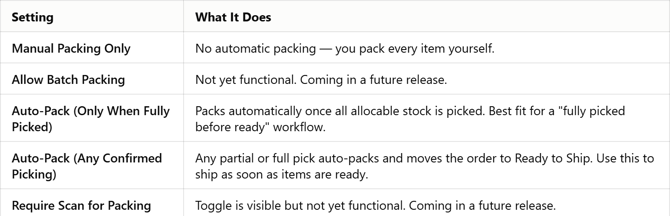
Key things to know with settings:
- If you use ShipStation for labels, it still uploads on pick, not pack — you'll want Auto-Pack enabled, or orders using ShipStation may never reach a dispatched state in Zenventory.
-
Serialized items cannot be auto-picked. After they are manually picked, the system automatically reopens and recloses the related package instead of requiring a second label.
Frequently Asked Questions
Can I create automation rules around Packing?
Yes. You can create automation rules for packing.
Drag-and-drop isn't working in the Pack Verify Screen?
Check whether Require Scan for Packing is enabled in Admin > Settings — this disables drag-and-drop by design.
Why is the Create Label Button is greyed out on the Ship Page?
This happens when one of the packages is not closed. You will also see a warning display under the order contents area that says "Packing not Complete". Select the "Rearrange Items" button to open the order.
What Bulk Actions are Available in the Pack Verify Screen?
- Print Group Summary
- Print Pick List
- Print Packing Slips
- Unpick
- Unpick & Unallocate
- Cancel Selected
- Manage Tags
- Bulk Update
- Add Misc. Charge