![Untitled design (24)-1.png]](https://help.zenventory.com/hs-fs/hubfs/Logos/Untitled%20design%20(24)-1.png?width=60&height=60&name=Untitled%20design%20(24)-1.png)
Prerequisites
- Requires your Zenventory account to be enabled for use of this integration. Please reach out to the support team via the Help section of the software.
- Each product must have a unique SKU.
TikTok Shop Integration Functionality
- Pulls in all active products with SKU values if they don't already exist in Zenventory. If they do, maintains the connection for inventory updates
- Pulls orders from Tik Top Shop into Zenventory
- Updates orders with line item changes from TikTok (optional)
- Imports order cancellations from TikTok (optional)
- Pushes inventory stock levels from Zenventory to Tik Tok Shop
- Pushes shipment info from Zenventory to Tik Tok Shop
Update interval (maximums):
- Get Orders and Update Inventory: 15 minutes
- Pull in New SKUs and maintain connections to products - Once/day
- Send shipments - sent immediately upon shipping
Connecting TikTok Shop to Zenventory:
-
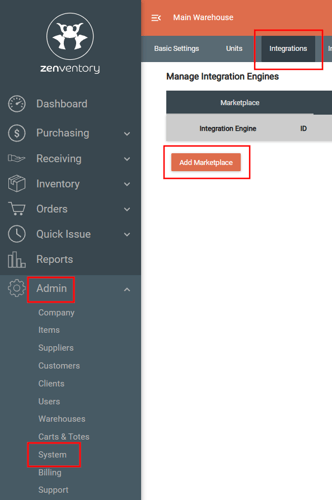
Navigate to the Admin>System>Integrations>Marketplace page
-
Click the "Add Marketplace"
 button
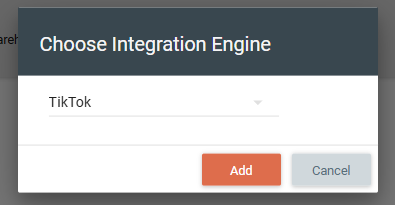
 - Choose TikTok from the dropdown list of Marketplaces and hit the "Add" button.
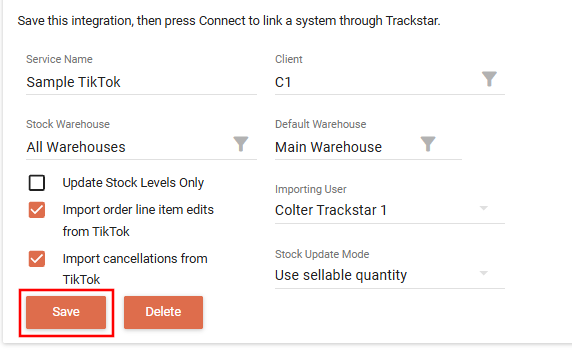
- Fill out your desired settings and hit the save button
- Service Name (required) - you can name it anything you like.
- Stock Warehouse - the warehouse (s) you want to factor into stock updates to TikTok
- Client (3PL Only) - the client the integration belongs to
- Default Warehouse - when orders import this is the warehouse that will be set as the "Ship From" warehouse
- Importing User - the Zenventory user attached to order creation and import timestamps
- Stock Update Mode - gives you the options (1) Do not update stock, (2) use in stock quantity, or (3) use sellable quantity. In most use cases, using the "Sellable" quantity is the right choice if stock updates are desired to help avoid overselling.
- Hit the "Connect"
 button - you'll see a new window pop up to login to your TikTok account and enable the connection. Follow the on screen prompts to make your selections based on your account.
 - Once complete, hit the "Initialize"
 button. Once the initialization has completed, the connection is live.
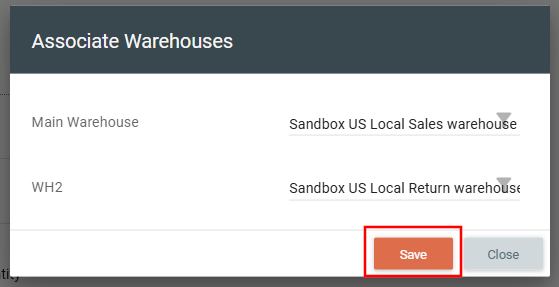
 - The final step is to associate your Zenventory warehouse (s) with TikTok warehouses. Hit the "Associate Warehouses" icon to do the selection and hit Save once complete.